Help
Introduction
The application works as a continuous overview of intake of fluids and minerals in order to make it easier for dialyzed patients to follow their prescribed diet and fluid intake.
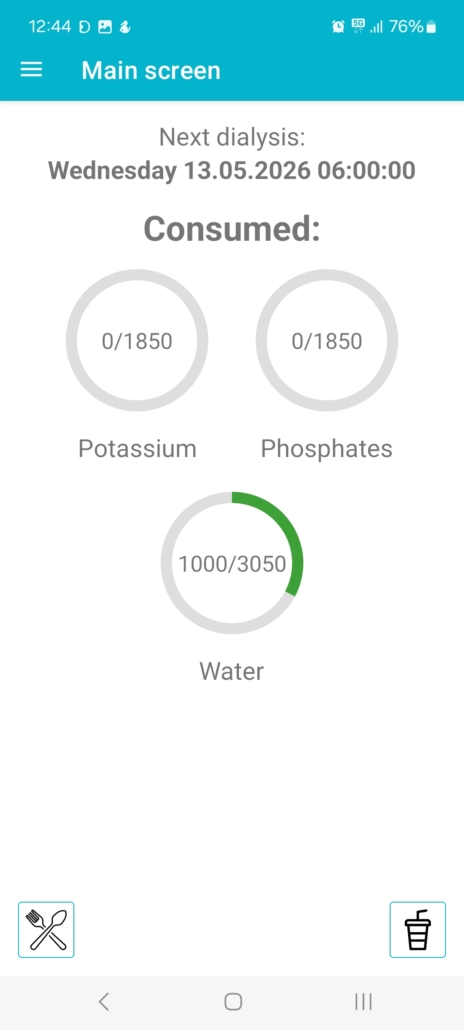
The system works in such a way that the user is entering their entire intake of food and drinks. It means that every time the user eats or drinks anything they will enter it into the system by searching each item (food or drink) in the database and confirming it. After picking up the item from the table the application will automatically calculate the volume of fluids and the amount of potassium and phosphorus both in food and drinks. All intake values are constantly added up and continuously displayed in clear charts. Each chart shows optimum values (green color) reflecting the recommended intake in between two dialysis sessions. Values above the optimum limit are displayed in red color. Maximum value of the chart should not be in any case exceeded. The charts show the values continuously from the end of the last dialysis session (during which the dialysis apparatus filters away the excessive potassium and phosphorus from the patient’s blood and lowers the amount of fluids in their body through ultrafiltration) to the start of next dialysis session (as set up in the Profile). In the course of dialysis the charts and consumption input are inaccessible. When the dialysis is finished the charts are reset and they start to measure again from the beginning. In case of fluids the user enters their new initial weight after dialysis (which has been achieved) and the fluid intake is then measured from that value.
The advanced version of the application enables expanding the foods database by more items and the user can also set up their own (regularly consumed) dishes consisting of several items from the database and save them under their own names for easier future entry.
The above mentioned facts show that a correct operation of this application depends on the discipline of each user and requires that the user enters really everything they consume. The database also allows for offline searching for the values of potassium, phosphorus, sodium, and water contained in each item in order to see how much of each substance the item contains and whether it is suitable to be included into one’s diet. All the items entered can be displayed in the Daily list (even for previous days, by date).
The advanced version also provides the history of values reached and statistics showing the tendencies (improvement or worsening of results). A dot at the particular date indicates a day when a consumption entry was made.
Explanation of menu items
CONSUMPTION:
The Consumption menu includes 2 tabs: Foods & Dishes.
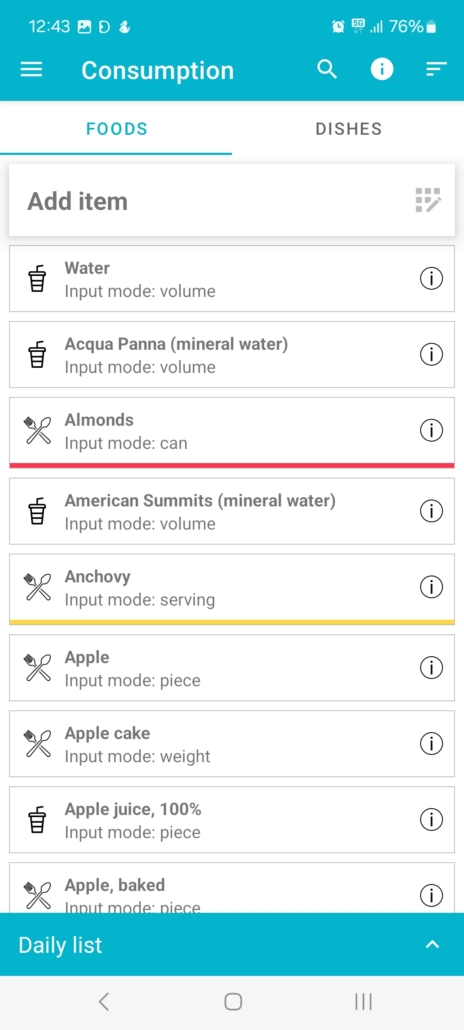
The Foods tab contains a table for selection of consumed foodstuffs/drinks. Each table line contains a food/drink symbol, item name, entry mode (weight/volume), and info icon.
At the top there are a search icon, info icon, and filter icon. Tap the search icon to open the search field where you can enter the name of the foodstuff or drink. Already during writing the table items start to be filtered accordingly. Tap the info icon to view the legend of colors used. Tap the filter icon to sort the table items in ascending or descending order by the amount of potassium and phosphorus.
If you cannot find an item in the table try entering its modified name. If the item is not included in the table select a foodstuff of a similar character.
Below the two tabs you will find the Add item bar for input of new items into the table. When you tap this bar a dialog will appear where you can enter the item’s name, type (foodstuff / drink) and the value of each substance contained.
The Dishes tab includes a bar for input of a new custom dish and a list of so far created dishes below it. By tapping on the bar you display a dialog for creating a new dish. Here you can search for each item from the table of foods/drinks and enter its amount contained in the dish being created. When all the ingredients have been entered you type the name of the dish and save it for its further use.
At the bottom of the Consumption menu there is a Daily List bar. Tap the bar to view the list.
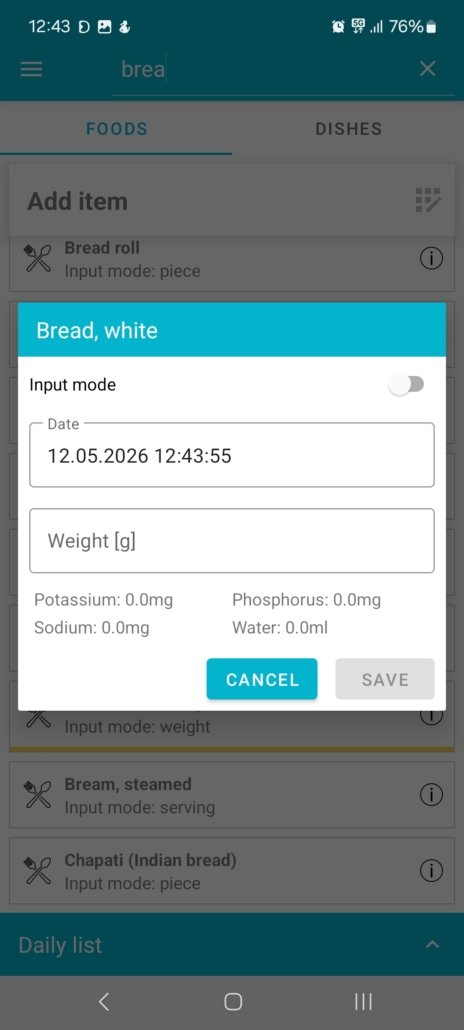
Tap the table item to view the input box containing the item name, entry date, amount input field, and a list of monitored values converted to the amount entered. The box also contains an entry mode switch to select the mode of entry – amount (weight/volume) or preset servings (for certain items).
At the beginning, it is good to weigh each item (or in case of fluids measure their volume) but after some time you will be able to estimate the numbers. Also, most of dishes repeat themselves which makes their subsequent entering into the system easier.
Daily List
The Daily List contains items consumed within the particular day (marked by a dot in the calendar). The displayed day can be changed by setting another date by tapping the calendar icon. Each saved item can be modified (by tapping the particular item and changing the amount entered) or removed (by tapping the bin icon). You can also add new (forgotten) items that will be added to the displayed day: Choose the required day and select a forgotten item from the main table. After saving the item it will be added to the list of the displayed day in Daily List.
The Dishes tab offers a possibility to set up and save your own dishes consisting of multiple items from the foods table.
PROFILE:
GENERAL
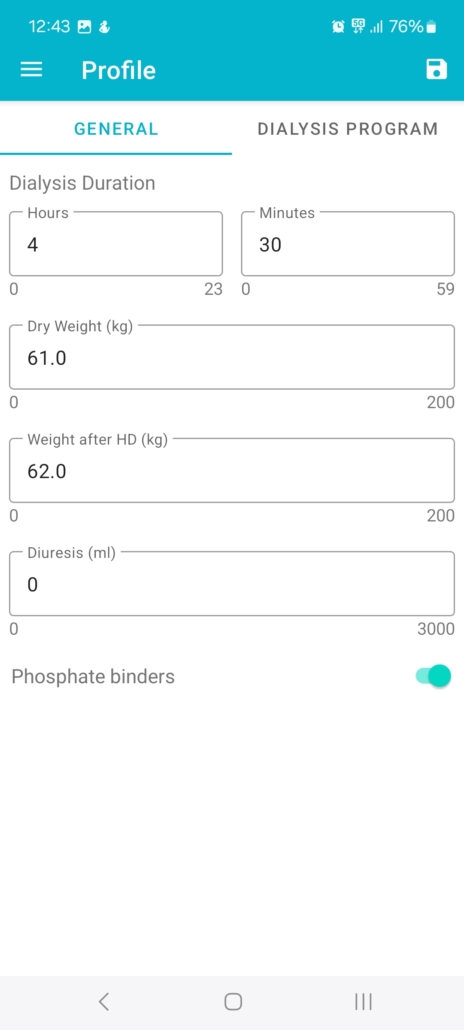
DIALYSIS DURATION – Prescribed duration of one dialysis treatment (in hours and minutes).
DRY WEIGHT – One’s dry weight in kilograms. Here enter your dry weight as given by your physician. In case of change enter the new value. Your current weight achieved after dialysis is entered in the Weight After Dialysis box which appears after the finish of each dialysis.
WEIGHT AFTER HD – Your (initial) weight reached after dialysis in kilograms. Ideally, it is identical with prescribed dry weight but it can differ in some cases. The difference between this weight and dry weight will be used as a starting point for the water chart.
DIURESIS – Your residual diuresis (amount of urine in milliliters per 24 hours). Enter zero (0) if you don’t urinate anything anymore.
PHOSPHATE BINDERS – Here indicate if you are taking any phosphate binders (e.g. Calcium Carbonate, Sevelamer etc.). Set the radio button to Yes if you are taking such medicaments, otherwise set it to No.
DIALYSIS PROGRAM
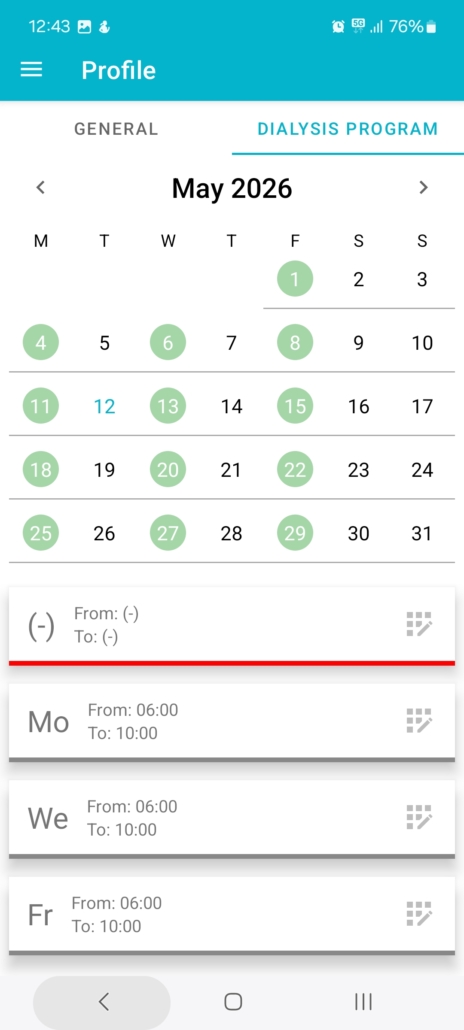
If you need to change the setting of your dialysis sessions tap on the particular setting bar (of the given weekday) and tap the Remove icon to remove it. Then set up a different weekday and start and end times using the setting bar and saving the new data will change the terms in the calendar. If you need to change only a single term and keep the rest of the dialysis program tap on the particular day in the calendar (on its date) and change its data in the input field.
OPTIONS:
LANGUAGE – Setting of the application language. Here you can choose a language used in this application. You can choose from Czech, English, German, French, and Spanish. The default language is set according to the smartphone language setting.
HELP:
OVERVIEW – An introduction to this application, its system, and medical values used.
HELP – A help for this application with explanation of individual menu items.
SETTINGS WIZARD – A wizard that will guide you through initial settings of the application.
DISCLAIMER – A disclaimer concerning the liability for any possible problems associated with using of this application.
UPDATES – Here you can view changes included in each new update.
PRIVACY POLICY – A link to the Web page with Privacy Policy for this app.
ABOUT – Information about the application & credits.
Basic App Setup
First, configure your basic hemodialysis (HD) parameters in Profile menu.
Navigate to Profile > General and complete all fields: Dialysis Duration, Dry Weight, Diuresis, and Phosphate binders. Next go to the Dialysis Program tab. Use the bottom bar set your dialysis schedule: enter the day and time of your first session and tap the disk icon to save it. Repeat this process for your remaining sessions. This setting will allow the app to calculate the values between each 2 dialysis sessions.
Once your program is set up, you can begin logging your intake. When you eat or drink, go to the Consumption menu and search for the item in the table. Tap the item and enter its weight. (Initially, will may need to weigh your food or check the menu in the restaurant, but you will soon be able to estimate weights more easily. For drinks, volume is typically easier to determine.) Once saved, the item is added to your Daily List, and the charts will reflect your current status until your next dialysis session. Charts reset automatically after each dialysis treatment, and calculations begin fresh for the next cycle.